

Create & Schedule Campaigns
Learn how to configure sender identities, target contact audiences, exclude suppression lists, configure delivery timing, and review billing credits before launching.
1. Setting Up Senders & Audience#
From the Campaigns dashboard, click + Create campaign to slide open the campaign drawer:
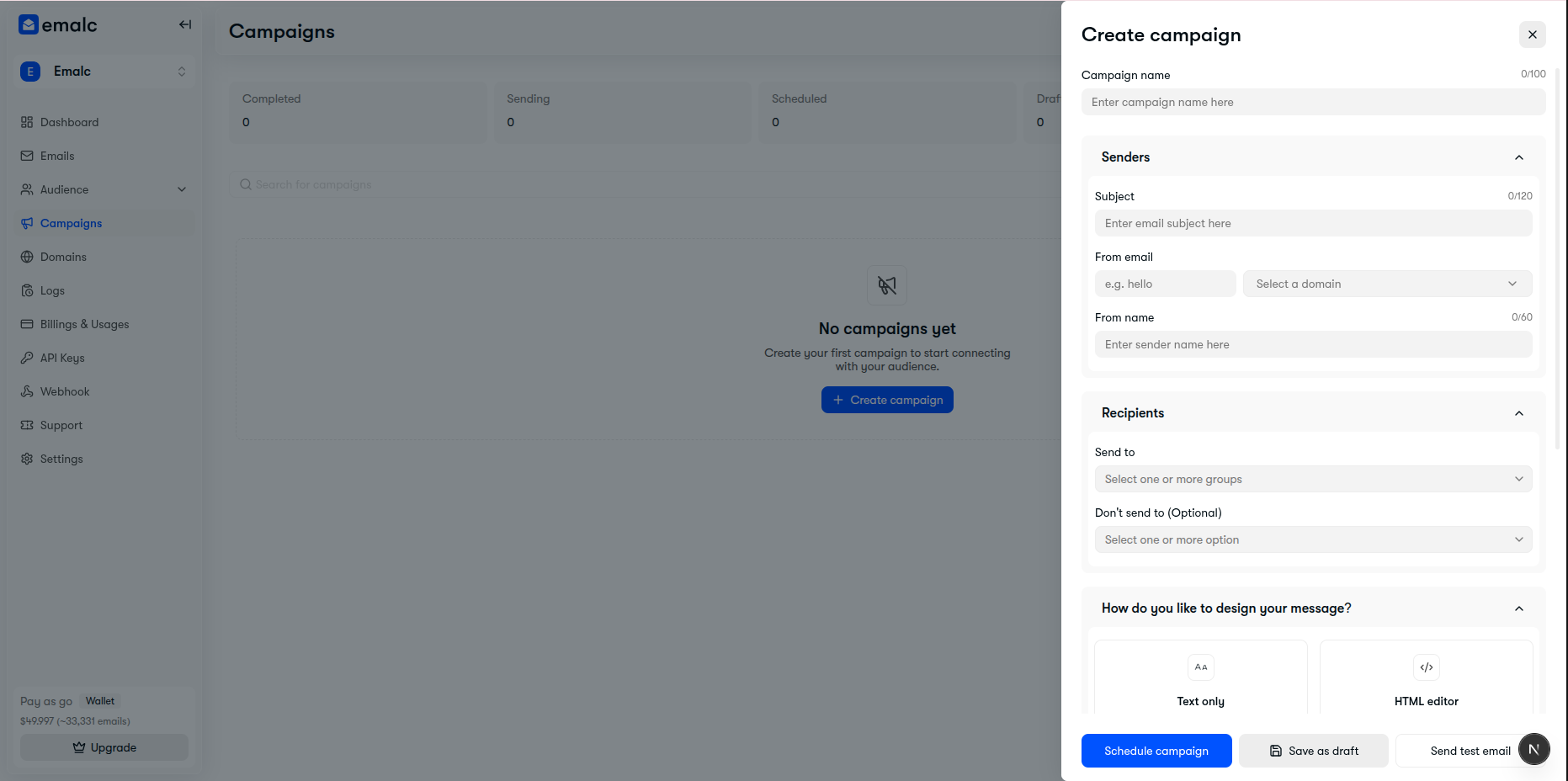 Create campaign drawer showing Campaign Name, Senders, Recipients, and Message Design
Campaign Name#
Assign an internal name (up to 100 characters) to organize your campaigns. This is only visible to your workspace team.
Senders Configuration#
- Subject: The email subject line seen by your recipients (up to 120 characters).
- From email:
- Prefix: The mailbox handle (e.g.
hello,support,newsletter). - Domain: Choose your verified sending domain from the dropdown. Only domains verified with SPF and DKIM records appear here.
- Prefix: The mailbox handle (e.g.
- From name: The display sender name (e.g.,
Emalc TeamorSarah from Acme).
Audience Targeting & Exclusions#
- Send to: Select one or more contact groups from your Audience database. Emalc automatically calculates the total contact count.
- Don't send to (Optional): Choose exclusion groups (e.g. existing customers for lead campaigns or recent unengaged contacts) to avoid duplicate or unwanted messages.
Automatic Deduplication
If a contact belongs to multiple selected groups, Emalc automatically deduplicates recipients so each subscriber receives only one email. Contacts matching any "Don't send to" list are automatically excluded.
2. Tracking Configuration#
Scroll down in the drawer to configure open and click tracking. By default, campaigns inherit settings from your sending domain:
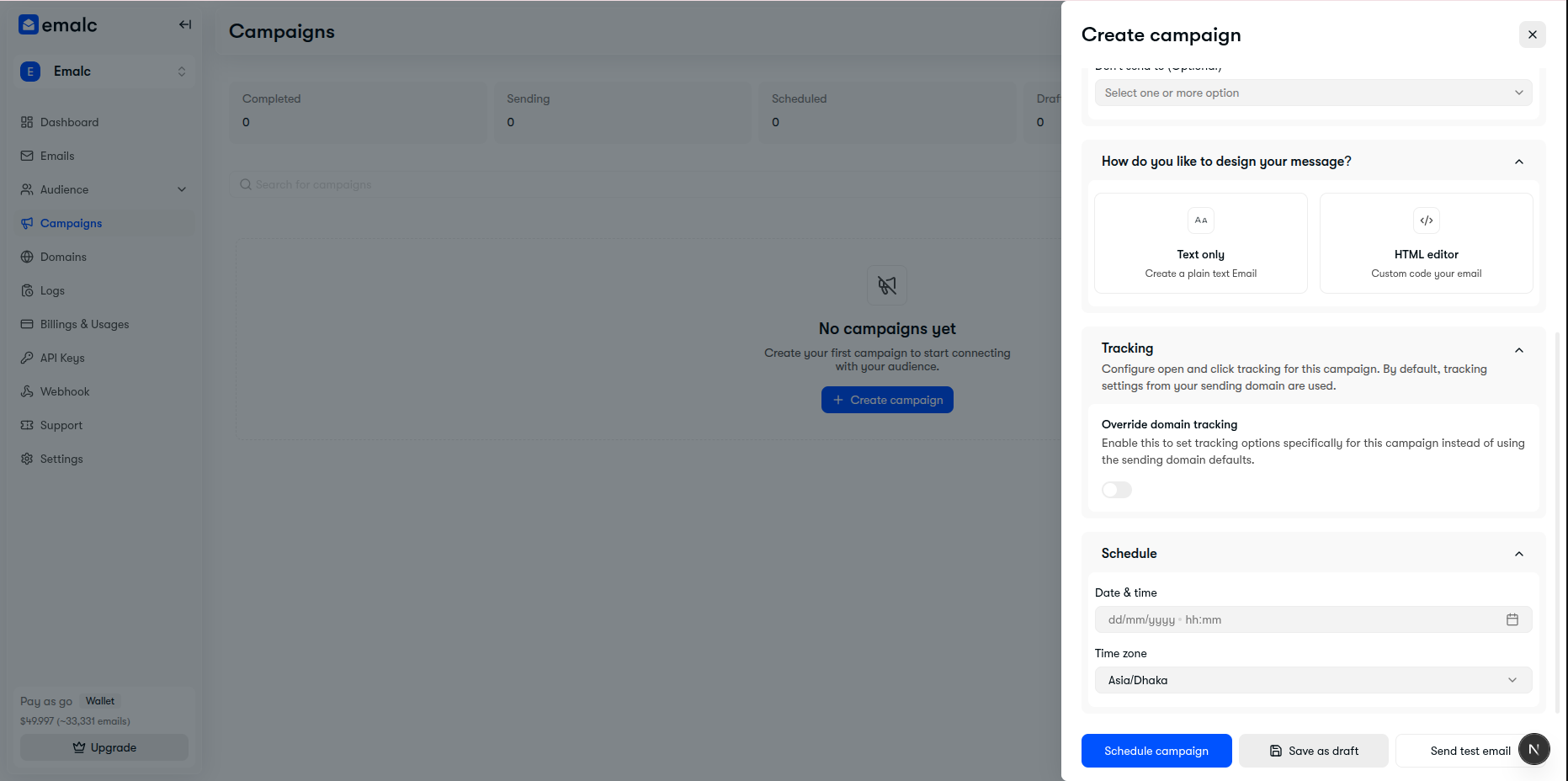 Tracking and Schedule sections in the campaign drawer
To customize tracking for this specific broadcast, toggle on Override domain tracking:
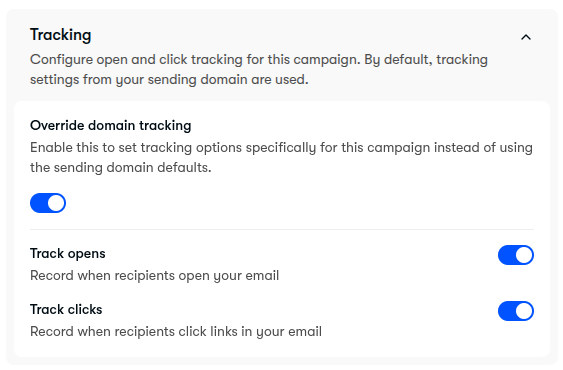 Override domain tracking toggles for Track opens and Track clicks
- Track opens: Embeds an invisible 1x1 tracking pixel to calculate email open rates.
- Track clicks: Rewrites links with secure redirect tracking to compute click-through rates (CTR).
3. Intelligent Scheduling & Timezones#
Select when your campaign should be delivered:
- Date & time: Choose a calendar date and time. Past time slots are automatically disabled.
- Time zone: Select your organization's timezone or select Recipient's local timezone.
Smart Delivery: Recipient's Local Timezone
When you select Recipient's local timezone, Emalc staggers delivery based on each subscriber's country/timezone. An email scheduled for 9:00 AM arrives at 9:00 AM local time for subscribers in New York, London, and Tokyo alike.
4. Preflight Credit Audit & Launch#
When you click Schedule campaign, Emalc runs a real-time preflight audit before committing your broadcast:
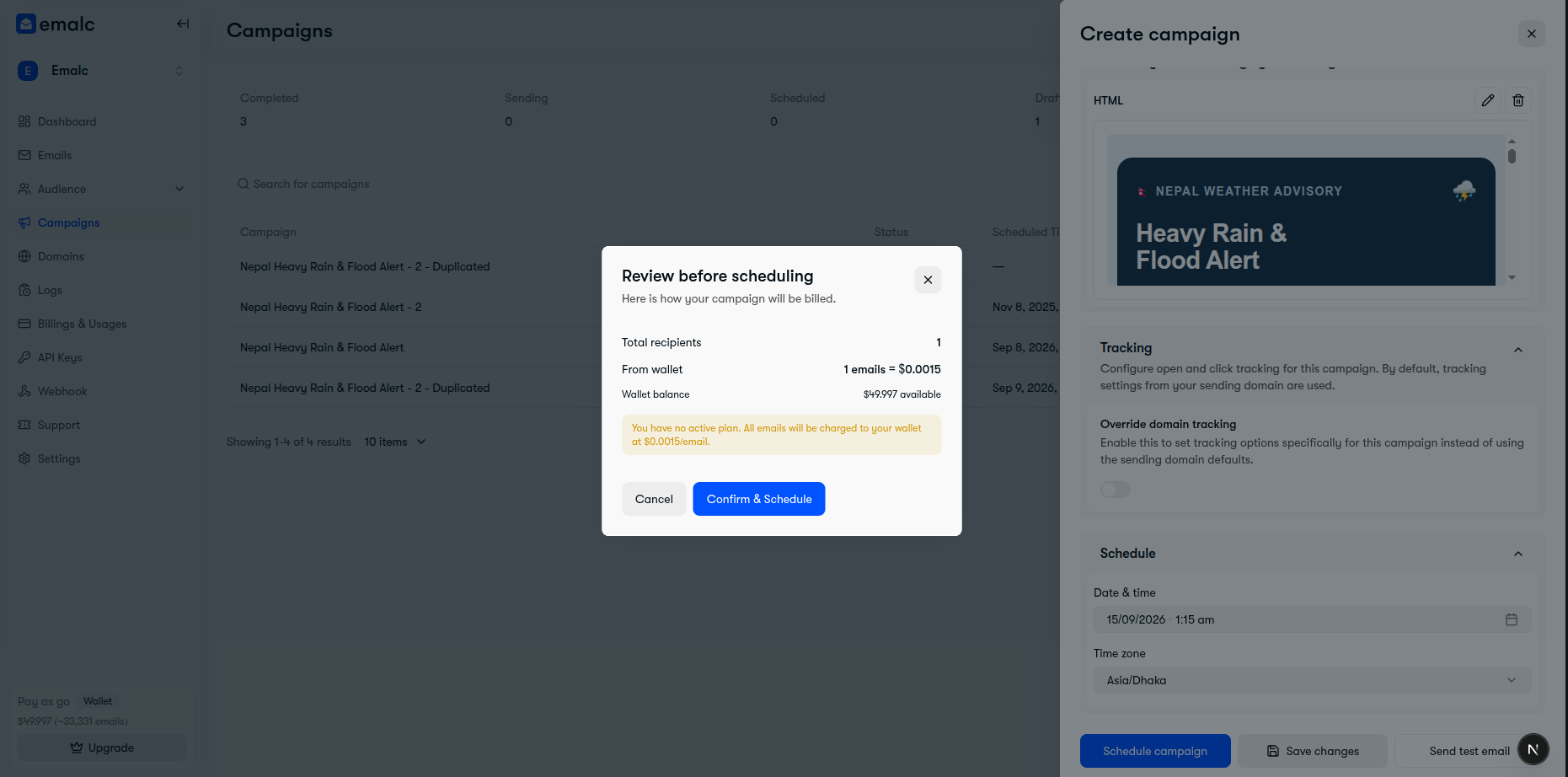 Preflight review modal showing total recipients, wallet cost calculation, and confirmation action
The preflight audit validates:
- Audience Validity: Confirms active contacts exist and ensures no deleted groups are selected.
- Quota & Balance Calculation:
- Compares total recipients against your Subscription Plan quota.
- Any volume exceeding plan quota is calculated in micro-cents against your Wallet Balance.
- Transparent Confirmation:
- If credits are sufficient, click Confirm & Schedule to schedule the broadcast.
- If your wallet balance is insufficient, one-click buttons direct you to Top up wallet or Upgrade plan.
Your campaign status transitions to Scheduled and is queued for automated delivery.