

Suppressions & Deliverability Protection
A Suppression is a protective barrier that permanently blocks outbound emails from being dispatched to specific email addresses.
Emalc maintains an active, workspace-wide suppression engine to ensure compliance with global anti-spam regulations (such as CAN-SPAM and GDPR) and to safeguard your sending domain's sender reputation with major mailbox providers (Gmail, Yahoo, Outlook, and Apple Mail).
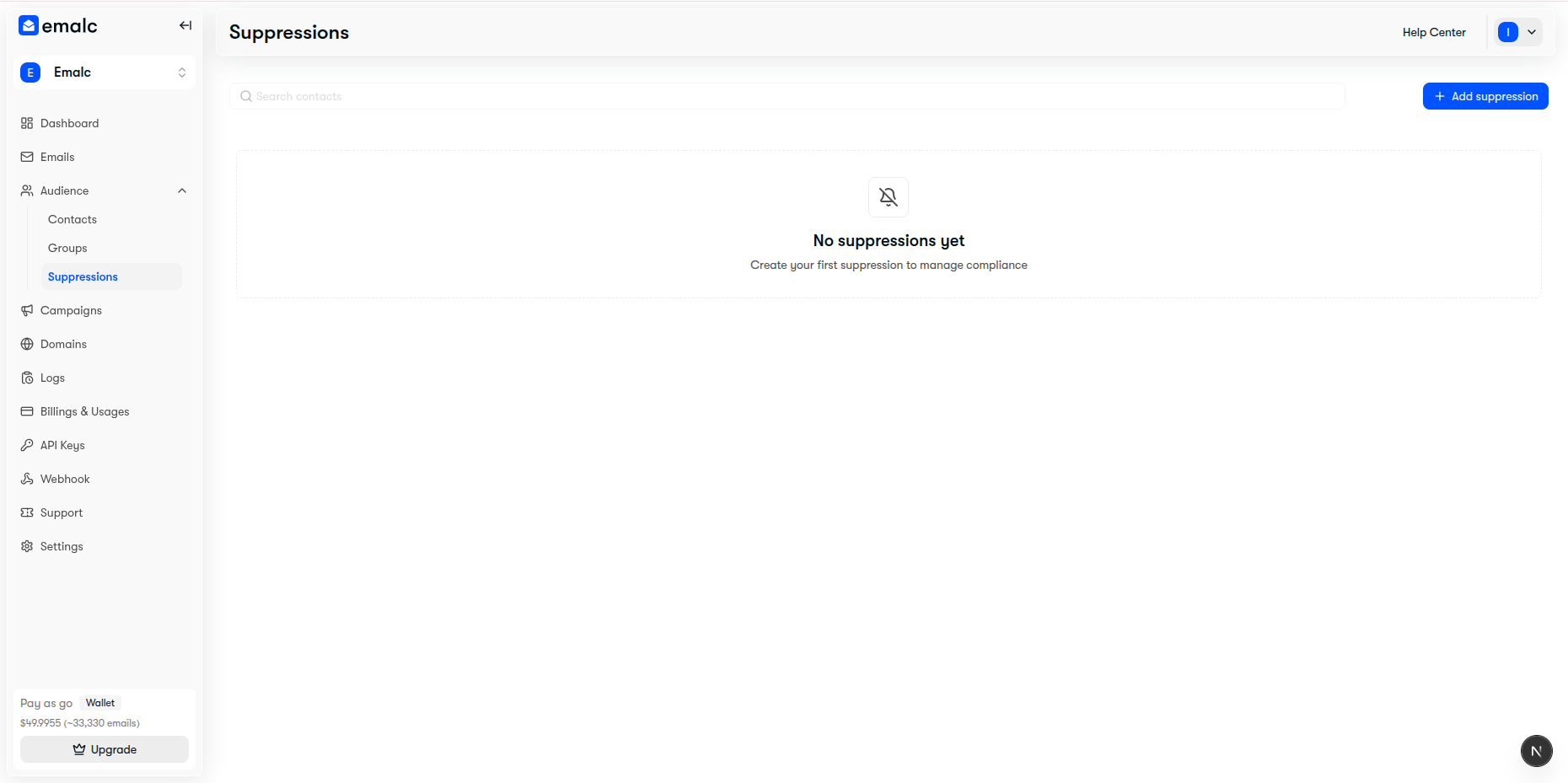 Audience Suppressions table showing compliance management toolbar and add suppression action
How Emails Enter the Suppression List#
Email addresses are added to your suppression registry either automatically through delivery event hooks or manually by workspace administrators:
| Trigger | Origin | Description | System Action |
|---|---|---|---|
| Hard Bounce | Automatic | The recipient's mail server reports that the mailbox does not exist or has been terminated. | Immediately suppressed to protect sender score from high bounce rate penalties. |
| Spam Complaint | Automatic | The recipient clicks "Report Spam" in their email client (via ISP Feedback Loops). | Instantly suppressed to prevent blacklisting by mailbox providers. |
| Unsubscribe | Automatic | The recipient clicks the one-click unsubscribe link in your email footer. | Suppressed across all future campaigns for that workspace. |
| Manual Blocklist | Manual | An administrator manually enters an email address or uploads a CSV blocklist. | Suppressed immediately upon confirmation. |
Automatic Campaign Dispatch Protection#
You never have to worry about accidentally emailing an unsubscribed or bounced contact:
- Pre-Flight Filter: When you schedule or send a broadcast campaign, Emalc automatically cross-checks every recipient against your active suppression table.
- Zero-Credit Deductions: Suppressed contacts are automatically excluded from the final recipient list before credits are calculated or deducted.
- Audit Transparency: You can review excluded contacts in your campaign pre-flight summary before confirming delivery.
Manually Adding a Suppression#
If a subscriber contacts your support desk directly requesting to be removed from all future correspondence, you can manually add them to the suppression list:
- Navigate to Audience → Suppressions.
- Click the blue + Add suppression button in the top-right toolbar.
- In the drawer:
- Enter the Email Address to suppress (or upload a CSV file with a list of emails).
- Select the Reason (e.g.,
Manual,Unsubscribe, orComplaint). - Enter an optional description or internal note explaining the reason.
- Click Save.
Unsuppressing an Email Address#
In rare cases, an active customer may have had a temporary email outage that generated a false-positive bounce, or they may contact you wishing to re-subscribe to your marketing updates.
To Unsuppress an Address:#
- Go to Audience → Suppressions.
- Search for the customer's email address in the search bar.
- In the table row, click the Unsuppress action button (bell icon) or select Remove suppression.
- Confirm the prompt to remove the address from the blocklist.
Deliverability Caution
Only unsuppress email addresses when you have verified that the recipient's mailbox is operational and that they have explicitly requested to receive emails again. Repeatedly emailing addresses with persistent hard bounces can result in temporary or permanent domain throttling by Gmail and Yahoo.